

Notebook LM
NotebookLM is a specialized AI research assistant developed by Google, designed to help users organize, analyze, and understand complex information. Unlike general-purpose AI tools, NotebookLM allows you to upload your own documents (Google Docs, PDFs, notes) and uses them as a knowledge base. It’s ideal for researchers, students, and professionals who need structured insights, summaries, and connections across large sets of information.
Key Features
Summarization: Condenses long reports, academic papers, or notes into key takeaways.
Q&A: Ask direct questions and get answers rooted in your documents.
Knowledge synthesis: Creates outlines, study guides, and summaries across multiple sources.
Multi-format support: Works with Google Docs, PDFs, and pasted text.
Cloud integration: Seamlessly connected with Google ecosystem.
Pros & Cons
Pros
-Reliable answers since they are based only on uploaded sources.
-Helps reduce research time by summarizing lengthy material.
-Easy integration with Google Drive and Docs.
-Great for students, researchers, and professionals handling large volumes of text.
Cons
-Limited to supported document formats.
-Not as versatile as general AI tools like ChatGPT.
-Requires careful curation of source materials for best results.
-Currently in gradual rollout (may not be available worldwide).
Cost Estimation
Free Plan
Price: $0 / month
Features:
-Access to NotebookLM with core features
-Ability to create notebooks and upload multiple sources (Google Docs, PDFs, text files, etc.)
-AI-generated summaries, outlines, and Q&A from your sources
-Available via web and mobile (Google ecosystem integration)
Best For: Students, researchers, or professionals testing NotebookLM for small projects or personal knowledge management.
Pro Plan
Price: From $19.99 USD / month
Features:
-Everything in Free
-Access to Gemini 1.5 Pro inside NotebookLM for more advanced reasoning and longer context support
-Higher limits for uploads, sources, and document processing
-Priority feature access and premium support through Google One
Best For: Professionals, academics, and teams who need more powerful AI for research-heavy projects, large document handling, or advanced summarization.
Business Application
Research & Analysis
Condensing academic papers, market reports, or policy documents.
Knowledge Management
Organizing internal company documents into a searchable AI assistant.
Content Creation
Drafting structured outlines and insights for reports or presentations.
Legal & Compliance
Summarizing case studies, contracts, and regulatory documents.
Education
Creating study guides and summaries for students.
Guidelines

Access Notebook LM
Go to the official site: https://notebooklm.google
Sign in with your Google Account (a personal Gmail or Google Workspace account).
Note: Availability may vary by region.

Create a Notebook
Once signed in, click “+ New Notebook.”
Give your notebook a clear title that reflects the project or topic (e.g., “AI Research Notes”).
Each notebook serves as a container for your uploaded sources and AI-generated summaries.

Upload Sources
NotebookLM works best when you provide it with relevant sources. You can add:
-Google Docs – connect directly from your Drive.
-PDFs – upload directly.
-Text files (.txt, .md).
-Copied & pasted text from articles, research, or notes.
Click “Add Source” in your notebook, then choose the file or document type.
Learn more here:
https://support.google.com/notebooklm/?hl=en

Interact with the AI
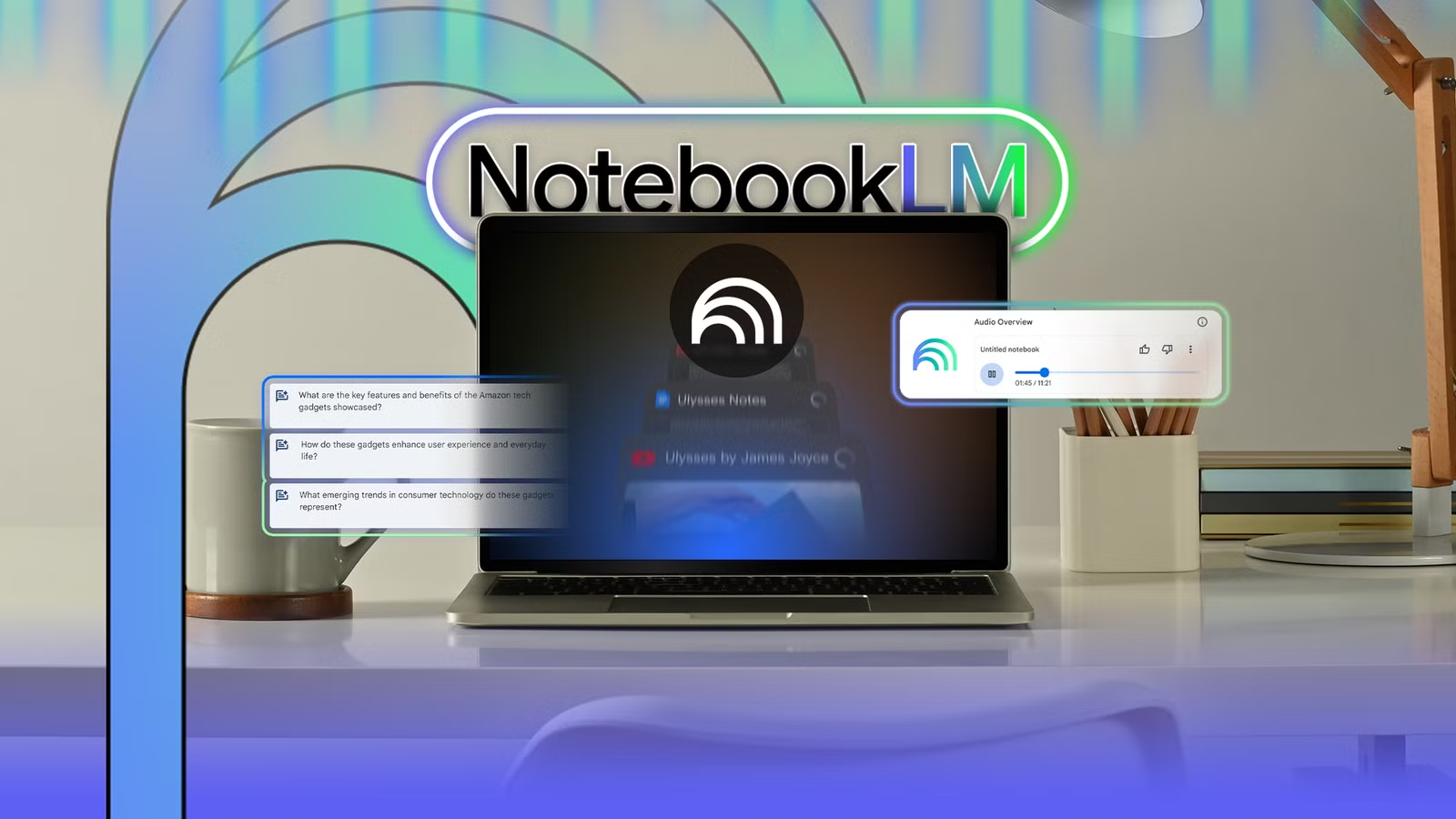
Use the chat sidebar to ask questions based on your sources. Examples:
“Summarize this 30-page PDF into key points.”
“Compare the findings in Source A and Source B.”
“Explain this article in simple terms for a beginner.”
NotebookLM provides grounded answers — meaning it cites the specific document or section it pulled the information from.

Generate Summaries & Outlines
Click on “Summarize Notebook” for an instant overview of all sources combined.
Use “Suggested Questions” that appear automatically — these help you explore insights you might not have thought of.
Export your summaries or copy them into Google Docs for further editing.

Organize and Collaborate
Share your notebook with others (if using Google Workspace).
Collaborators can add sources, ask questions, and generate insights together.

Upgrage if needed
The Free Plan is good for light use.
For more advanced features like Gemini 1.5 Pro integration and larger uploads, upgrade to Google One
Best Practices
Upload clean, relevant sources — the AI’s output quality depends on your inputs.
Always cross-check AI answers against your original documents for accuracy.
Use it as a research companion, not as a final authority.