

Power Automate
Power Automate, developed by Microsoft, is a cloud-based automation platform that helps users create automated workflows between apps and services. It reduces manual work, streamlines repetitive tasks, and improves efficiency. With integrations across Microsoft 365, third-party apps, and on-premise systems, Power Automate empowers individuals and organizations to save time, improve productivity, and standardize processes.
Key Features
Workflow Automation
Automate tasks across Microsoft 365, Dynamics, Azure, and hundreds of third-party apps.
Robotic Process Automation (RPA)
Use Power Automate Desktop to record and run UI-based automations.
AI Builder
Integrate AI models for document processing, sentiment analysis, and predictions.
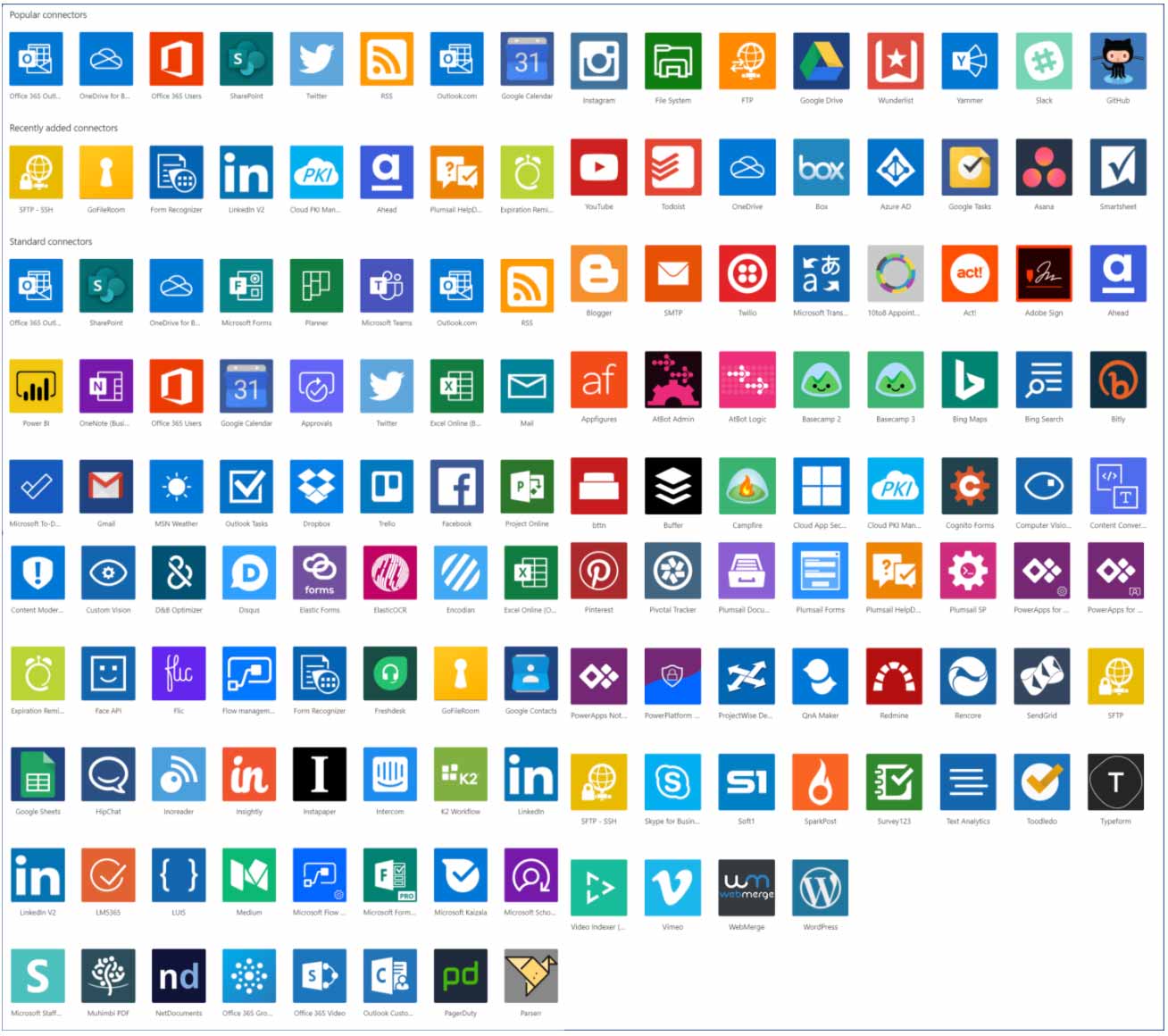
Connectors Library
1,000+ pre-built connectors for apps and services.
Cloud + On-Premises Integration
Automate both cloud and local desktop tasks.
Low-Code Development
Drag-and-drop interface for creating flows without coding knowledge.
Pros & Cons
Pros
-Seamless integration with Microsoft 365 ecosystem.
-Wide range of pre-built templates and connectors.
-No/low-code platform, accessible for non-technical users.
-Supports both cloud automation and desktop RPA.
-Strong security and compliance features.
Cons
-Learning curve for advanced automation and RPA.
-Costs can grow quickly for larger operations.
-Limited offline capabilities for some features.
-Some connectors require premium licensing.
Cost Estimation
Free Plan
Price: $0 / month
Model Access: Core Perplexity model (limited queries per day)
Features:
-Conversational Q&A with source citations
-Summaries for articles and documents
-Available on web and mobile apps
-Limited daily searches
Best For: Students, casual users, or individuals who need quick answers occasionally.
Pro Plan
Price: $20 USD / month
Model Access: Advanced reasoning with higher limits
Features:
-Unlimited searches and faster response speed
-Access to new experimental features first
-More detailed answers and in-depth summaries
-Priority performance during peak hours
Best For: Professionals, researchers, and content creators who rely on AI for daily tasks.
Enterprise Plan
Price: Custom (based on team size and usage)
Model Access: Full Perplexity Pro access + enterprise features
Features:
-Shared workspaces for team collaboration
-Centralized billing and user management
-Advanced admin controls and analytics
-Enterprise-grade security and compliance support
Best For: Businesses, research groups, and organizations managing multiple users.
Business Application
Customer Support
Automate case creation, ticket routing, and notifications.
Finance
Automate invoice processing, approvals, and reconciliations.
Human Resource
Streamline onboarding, leave approvals, and recruitment workflows.
IT Operation
Monitor systems, trigger alerts, and automate responses.
Sales & Marketing
Sync CRM data, generate reports, and automate campaign tasks.
Document Management
Automate approvals, archiving, and digital signatures.

Guidelines

Sign Up and Access Power Automate
Sign Up and Access Power Automate
Sign up an account via:
https://www.microsoft.com/en-us/power-platform/products/power-automate/
Choose whether to use Cloud Flows (online) or Power Automate Desktop (downloadable for RPA).

Choose Flow Type
Cloud Flow: Automate tasks between cloud apps.
Desktop Flow / RPA: For automating on your local machine via Power Automate Desktop.
Scheduled Flow / Instant Flow / Business Process Flow: depending on your use case.

Create a New Flow
In Power Automate portal, click “Create”.
Choose a template or start from blank (automated, instant, scheduled, or desktop).
For example: select “Automated cloud flow” and pick a trigger (e.g., “When a new email arrives”).

Configure Trigger
After selecting the trigger, connect the app (e.g. Outlook, SharePoint) and grant required permissions.
Fill in details such as which mailbox, folder, conditions, etc.

Add Actions
After trigger, add one or more actions (e.g., send an email, create a file, update a record).
Use connectors (standard or premium) to integrate with many services.
You can chain multiple actions, use conditions, loops, etc.

Test Flow / Run History
Use “Test” mode to run the flow with sample data.
Check Run History / Execution details to see logs, input/output for each step.
Fix errors by adjusting connectors, credentials, or conditions.

Configure Error Handling & Conditions
Use Scope / Try / Catch constructs or Configure Run After settings to manage errors.
Set fallback actions or notification in case of failure.

Activate / Enable the Flow
Once verified, turn the flow on (make it active).
It will run automatically based on the trigger conditions.

Use Power Automate Desktop for Local Automation
Download & install Power Automate Desktop via Microsoft.
Build desktop flows (RPA) to automate local apps, file operations, UI actions.
Integrate with your cloud flows for hybrid tasks.

Monitor & Maintain
Use the portal’s flow analytics and performance dashboards.
Observe which flows run often, error rates, execution times.
Regularly review to optimize, disable unused flows.

Document Your Flow
Write clear descriptions in flow settings (purpose, triggers, input/output).
Add comments or notes in steps for clarity.
Maintain version history or export flows for backup.

Document Your Flow
Learn & Reference Official Resources
Power Automate learning paths & modules:
https://learn.microsoft.com/en-us/training/powerplatform/power-automate?utm_source=chatgpt.com
Use official templates and sample flows.

Security & Permissions
Use proper connections, do not embed credentials in flows.
Grant minimal permissions necessary for connectors.
For sensitive flows, ensure compliance with your organization’s security policies.