

Read AI
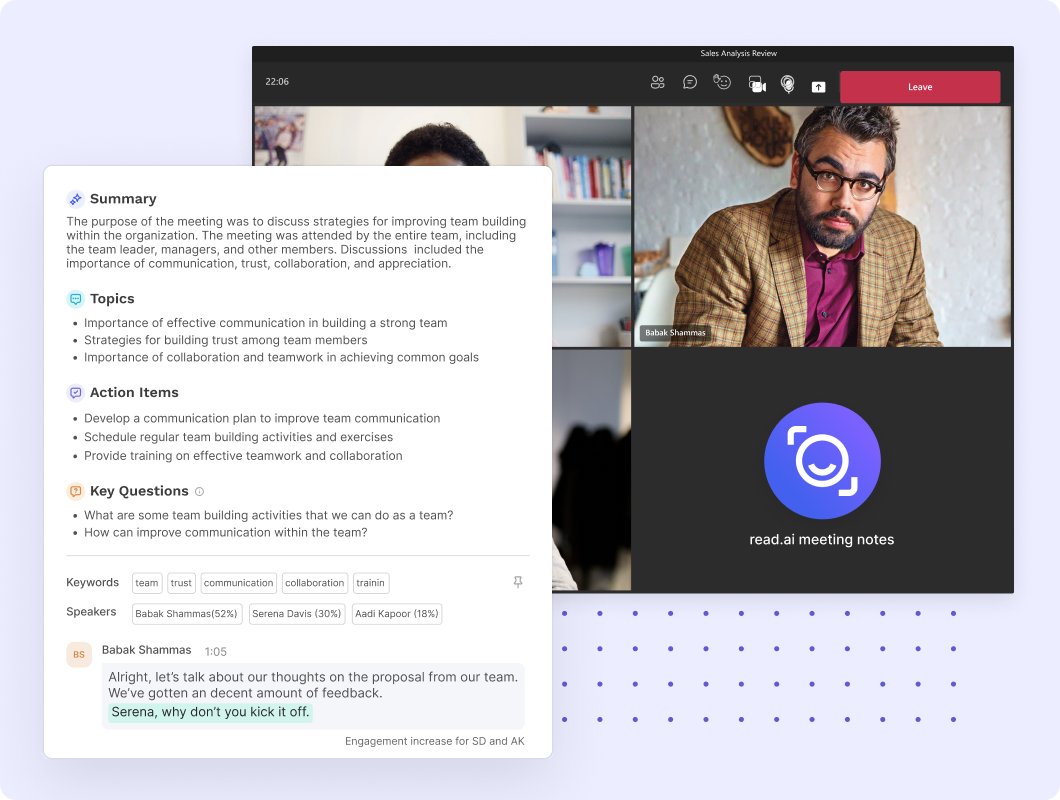
Read AI is a meeting intelligence platform that automatically records, transcribes, and summarizes conversations. It works across popular meeting apps like Zoom, Microsoft Teams, and Google Meet, helping businesses save time by turning long discussions into clear, actionable summaries. Designed for both individuals and teams, Read AI boosts productivity by ensuring no important detail is missed.
Key Features
Real-time web search with citations and sources.
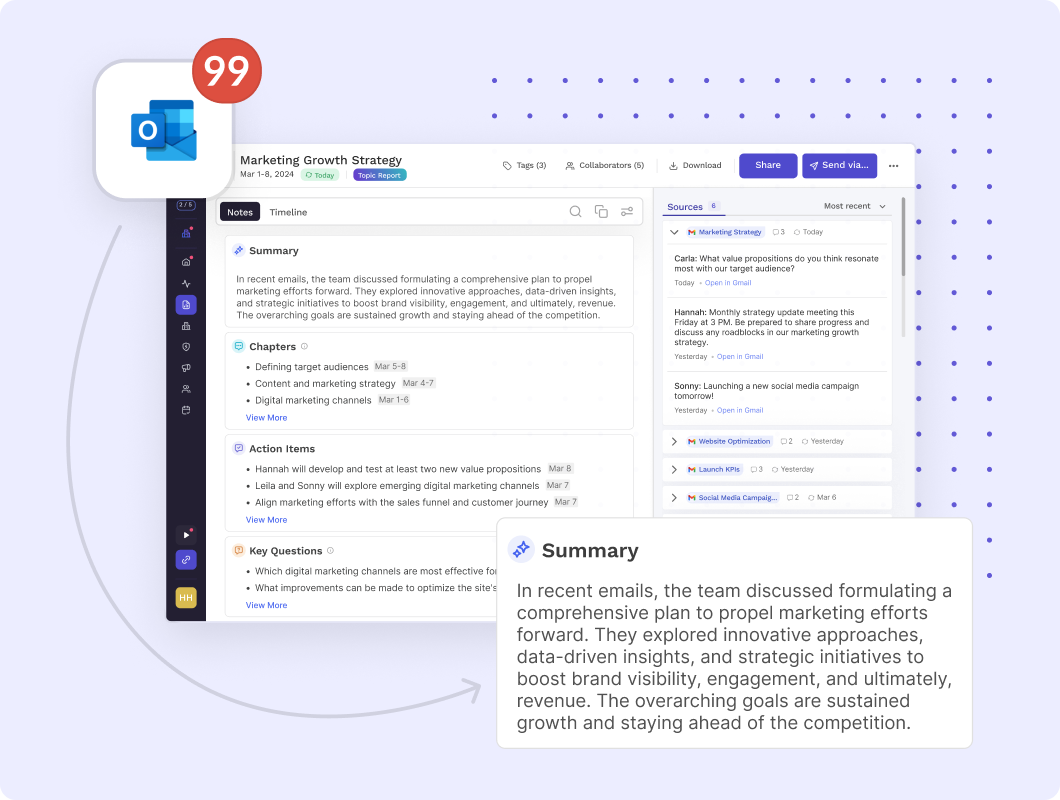
AI-powered summaries with key points and action items.
Real-time sentiment and engagement tracking.
Integrations with Zoom, Microsoft Teams, Google Meet, Slack, and more.
Multi-language support for global teams.
Pros & Cons
Pros
-Saves time by converting meetings into concise summaries.
-Easy integration with existing video conferencing platforms.
-Action item tracking keeps teams aligned.
-Helps reduce meeting fatigue with quick catch-up notes.
Cons
-Accuracy may vary in noisy environments or with heavy accents.
-Requires internet connectivity for transcription and summaries.
-Free plan has limited storage and features.
-Some advanced features are only in paid tiers.
Cost Estimation
Free Plan
Price: $0 / month
Features:
-Limited meeting transcription and summaries
-Basic integrations (Zoom, Google Meet, MS Teams)
-Storage cap for transcripts and recordings
-Access via web and mobile dashboard
Best For: Individuals or small teams who want to try AI-powered meeting notes occasionally without commitment.
Pro Plan
Price: Around $15–20 USD / month
Features:
-Unlimited meeting summaries and transcripts
-Advanced analytics (sentiment, engagement tracking, action items)
-Priority integrations with Slack, Notion, HubSpot, etc.
-Increased storage and history retention
-Priority support
Best For: Professionals, managers, or small teams that rely heavily on online meetings and need detailed summaries.
Enterprise Plan
Price: Custom pricing (based on team size and requirements)
Features:
-Centralized admin controls and team management
-Dedicated onboarding and customer success support
-Advanced compliance and data security options
-API access for integration into enterprise workflows
-Scalable storage and usage limits
Best For: Large organizations and enterprises with high meeting volumes, compliance requirements, or the need to integrate Read AI deeply into business systems.
Business Application
Real-time web search with citations and sources.
AI-powered summaries with key points and action items.
Real-time sentiment and engagement tracking.
Integrations with Zoom, Microsoft Teams, Google Meet, Slack, and more.
Multi-language support for global teams.
Guidelines

Access & Sign up
Visit the official website:
https://www.read.ai
Click Get Started for Free.
Choose to sign up with your Google, Microsoft, or email account.
Follow the on-screen prompts to create your profile.

Install or Connect Read AI
Read AI works directly in the cloud but can also integrate with meeting platforms.
Go to Integrations inside your account dashboard: Read AI Integrations
Connect your preferred platforms such as:
Zoom (Zoom Marketplace App)
Microsoft Teams (MS Teams Guide)
Google Meet (via Google Calendar integration)
Slack, Notion, HubSpot, and more.

Schedule or Start a Meeting with Read AI
When scheduling a meeting in Zoom/Google Calendar/Teams, invite Read AI as a participant.
Alternatively, log in to your Read AI dashboard and use the Join Meeting option.
Read AI automatically joins the call when it starts.

During the Meeting
Read AI records the conversation and generates live transcripts.
Engagement metrics such as participation, sentiment, and talk time are captured.
You don’t need to take notes—Read AI handles this automatically.

After the Meeting
Log into your dashboard:
https://app.read.ai
Access Transcripts, Summaries, and Action Items.
You can filter by date, participants, or meeting type.

Export & Share Notes
Send meeting summaries to teammates via:
Slack (https://slack.com/help/articles/204145658-Add-apps-to-your-Slack-workspace)
Notion (https://developers.notion.com/)
Other connected apps.
Export transcripts to PDF or copy key notes directly for documentation.

Set Up Team Collaboration
Invite team members into your Read AI workspace: Team Settings
Assign roles such as Admin or Member.
Share recordings and action items across your organization.

Security & Privacy Best Practices
Inform participants that meetings are recorded (important for compliance).
Manage your security settings here:
https://www.read.ai/privacy
Use password-protected meetings for sensitive discussions.